# Adding and Removing Seats

As an organization administrator, you have full control over who can access BlueGamma within your team. The Admin Dashboard provides a central hub for managing seats, inviting new users, and removing access when needed.

## Accessing the Admin Dashboard

1. Log in to your BlueGamma account at [app.bluegamma.io](https://app.bluegamma.io)
2. Click on **Admin** in the navigation menu (only visible to organization admins)

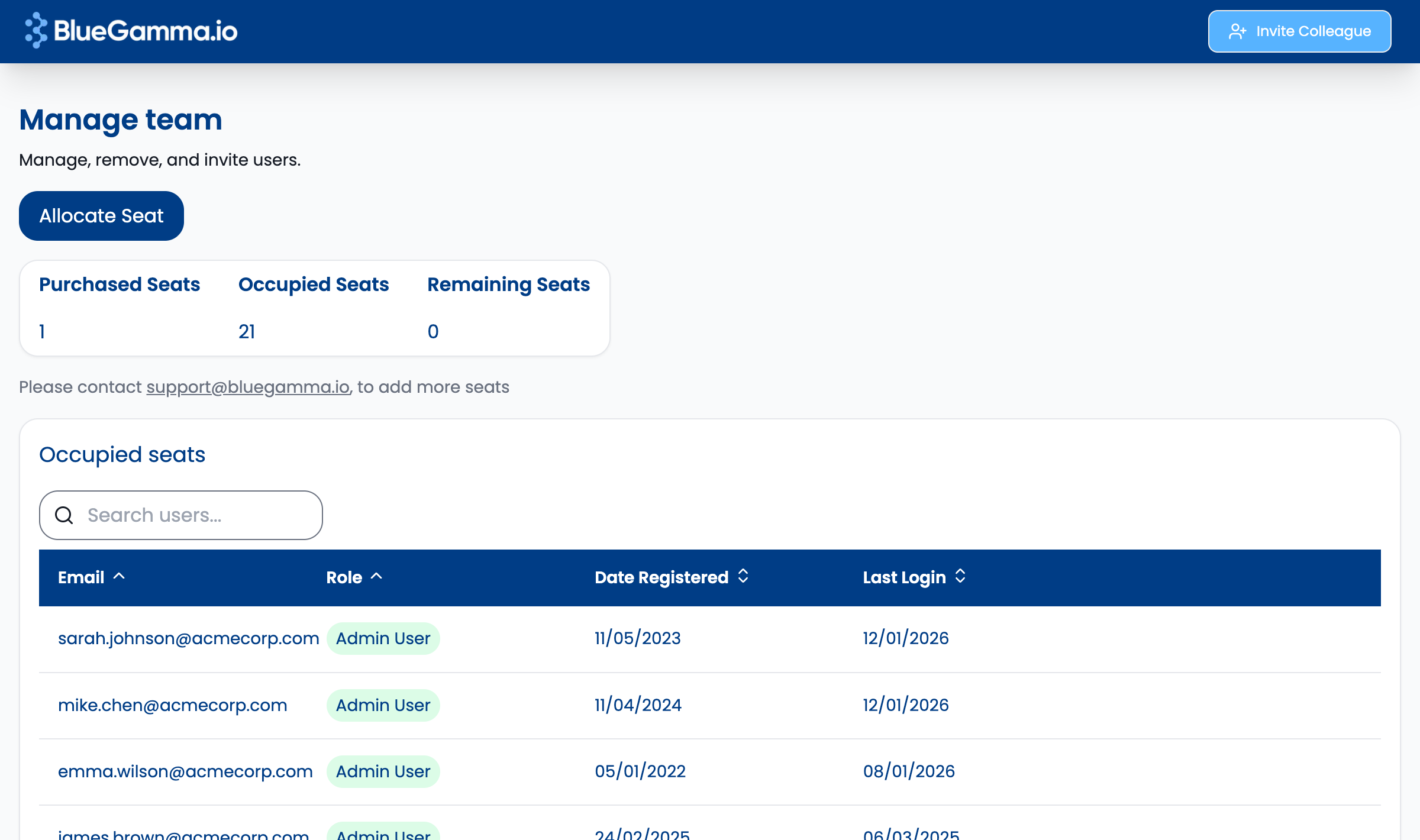
<figure><img src="/files/YEcaBMUFkMjcFdJV3AsP" alt="BlueGamma Admin Dashboard showing seat allocation and user management"><figcaption><p>The Admin Dashboard provides an overview of your seat allocation and active users</p></figcaption></figure>

## Understanding Your Seat Allocation

At the top of the Admin Dashboard, you'll see a summary of your organization's seat allocation:

| Column              | Description                                              |
| ------------------- | -------------------------------------------------------- |
| **Purchased Seats** | The total number of seats your organization has licensed |
| **Occupied Seats**  | The number of seats currently assigned to active users   |
| **Remaining Seats** | The number of seats available for new users              |

***

## Adding a New User

To invite a new team member to your BlueGamma organization:

### Step 1: Click "Allocate Seat"

Click the **Allocate Seat** button at the top of the Admin Dashboard.

### Step 2: Enter the User's Email

In the dialog that appears:

1. Enter the email address of the person you want to invite
2. Click **Add** to send the invitation

### Step 3: User Receives Invitation

The invited user will receive an email with instructions to:

* Create their BlueGamma account (if they're new)
* Access the platform using their credentials

{% hint style="info" %}
**Tip:** Users can sign up using email/password, Google SSO, or Microsoft SSO.
{% endhint %}

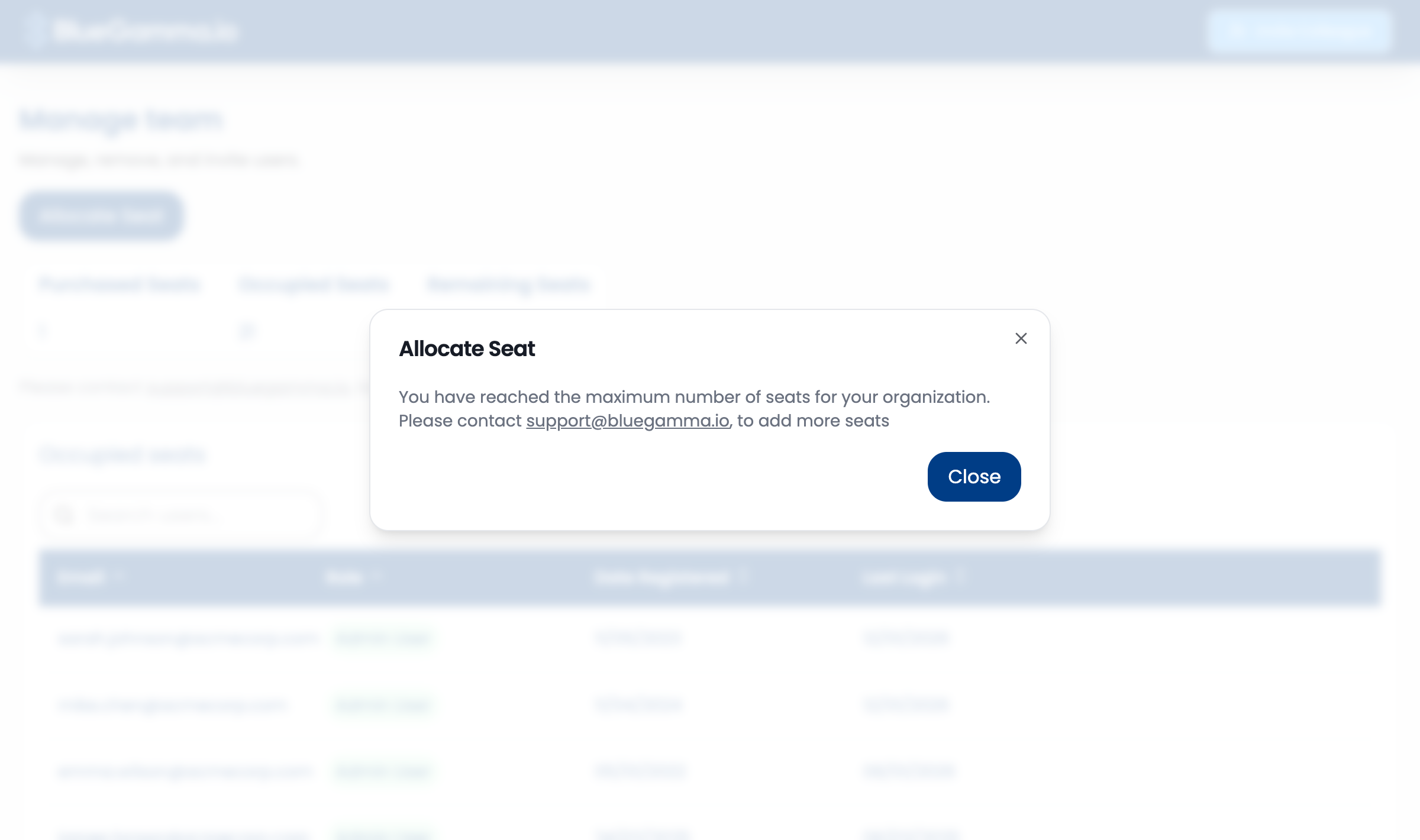
### What if You've Run Out of Seats?

If all your seats are allocated, clicking **Allocate Seat** will display a message indicating you've reached your limit. To add more seats, contact our team at **<support@bluegamma.io>**.

<figure><img src="/files/BWbcqY1nlnYQe0KKbjoD" alt="Dialog showing seat limit reached message"><figcaption><p>Contact support to purchase additional seats when you've reached your limit</p></figcaption></figure>

***

## Managing Active Users

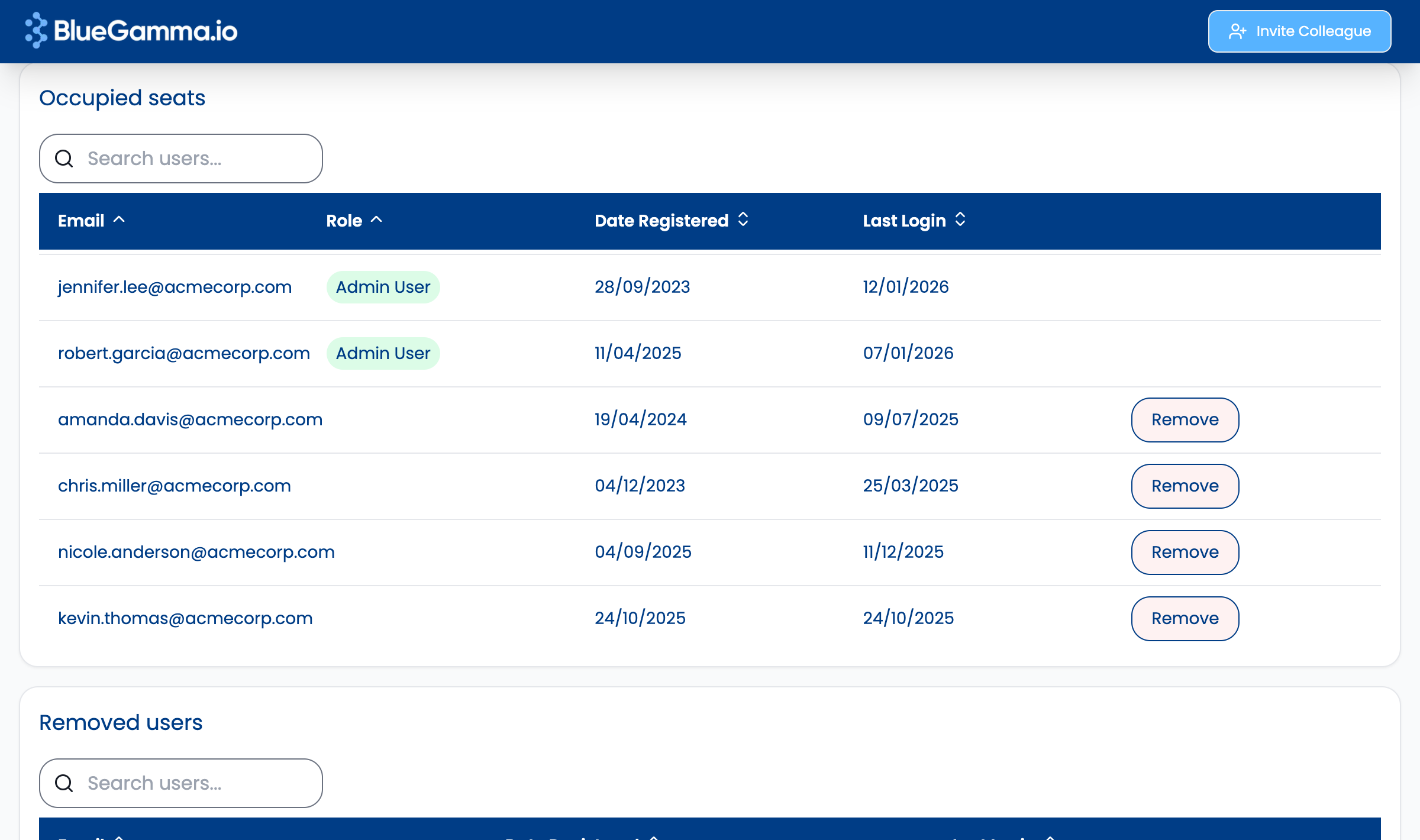
The **Occupied Seats** section displays all active users in your organization with the following information:

| Column              | Description                                              |
| ------------------- | -------------------------------------------------------- |
| **Email**           | The user's email address                                 |
| **Role**            | Shows "Admin User" badge for organization administrators |
| **Date Registered** | When the user first signed up                            |
| **Last Login**      | The user's most recent login date                        |

<figure><img src="/files/NhHj9DwKnB8n14x9GZd2" alt="Table showing active users with email, role, registration date, and last login"><figcaption><p>View all active users and their activity in the Occupied Seats section</p></figcaption></figure>

### Searching for Users

Use the **search bar** above the user table to quickly find specific users by email address. This is particularly helpful for organizations with many team members.

***

## Removing a User

To remove a user and free up their seat for reallocation:

### Step 1: Locate the User

Find the user in the **Occupied Seats** table. You can use the search bar to filter by email.

### Step 2: Click "Remove"

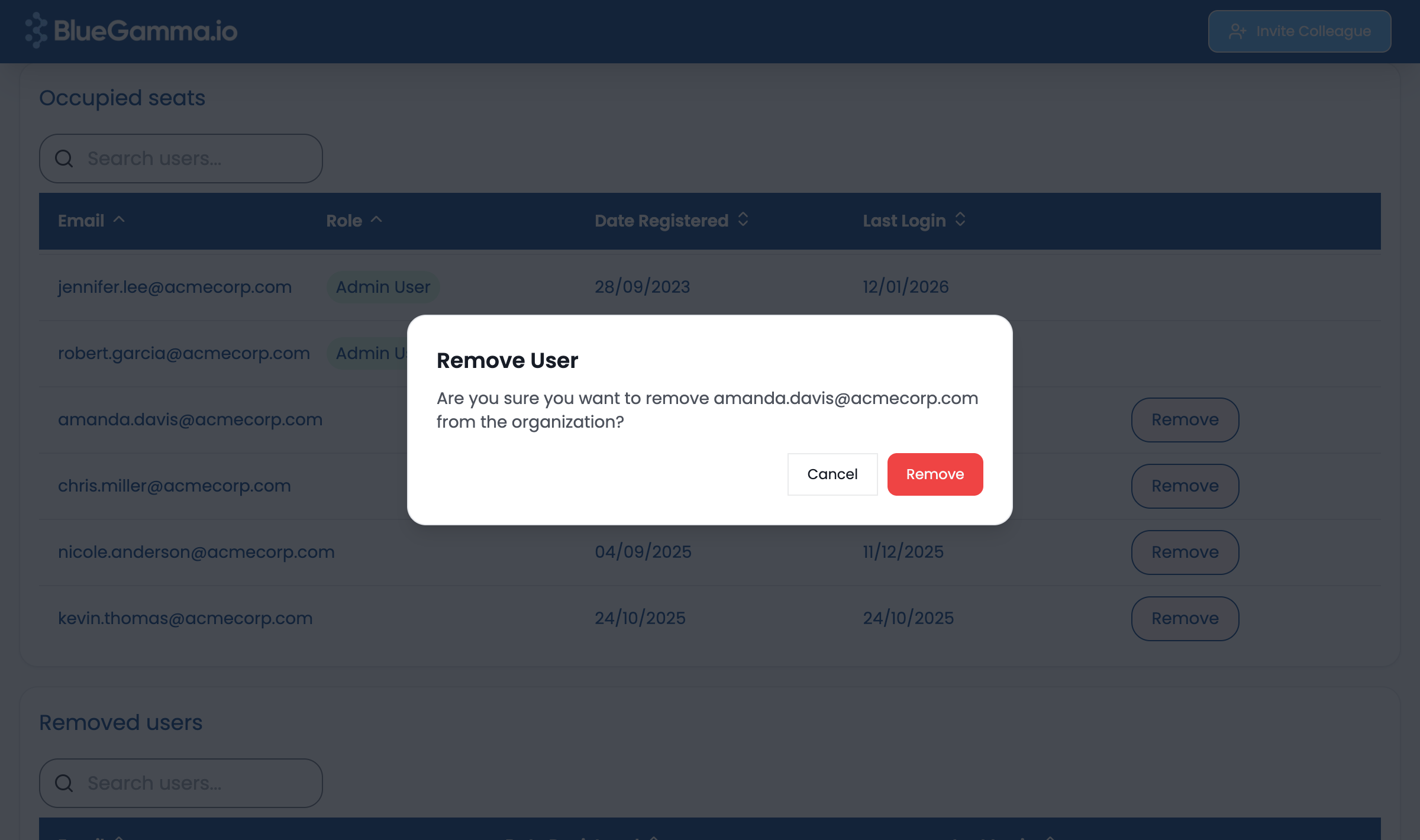
Click the **Remove** button next to the user you want to remove.

### Step 3: Confirm Removal

A confirmation dialog will appear asking you to confirm the removal. Click **Remove** to proceed or **Cancel** to go back.

<figure><img src="/files/NL2HW9C0UH4lcdXitjl4" alt="Confirmation dialog for removing a user"><figcaption><p>Confirm that you want to remove the user from your organization</p></figcaption></figure>

{% hint style="warning" %}
**Note:** Admin users cannot be removed from the organization. Contact support if you need to change admin access.
{% endhint %}

***

## Viewing Removed Users

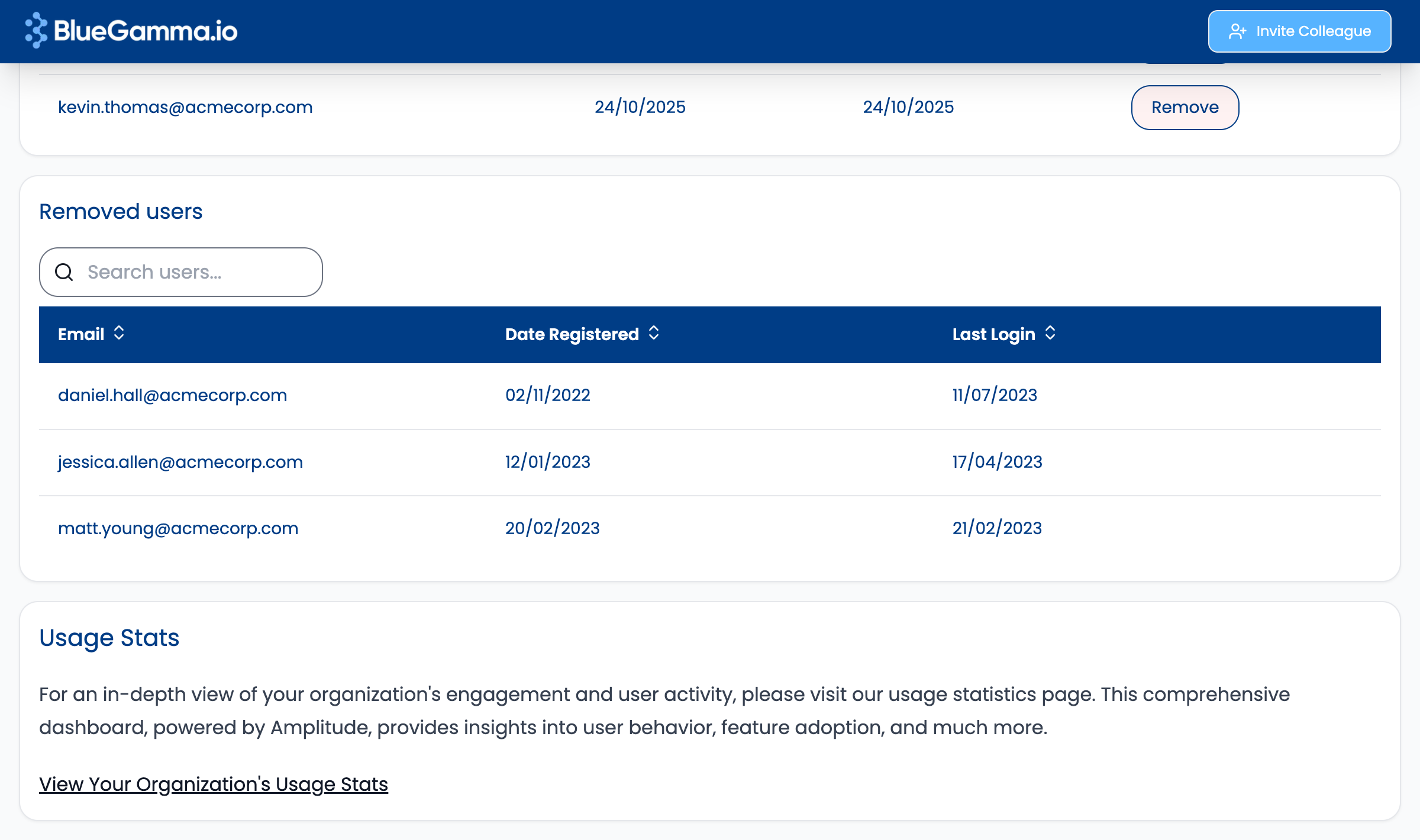
Users who have been removed from your organization appear in the **Removed Users** section at the bottom of the Admin Dashboard. This provides an audit trail showing:

* Email address of the removed user
* Date they originally registered
* Their last login date before removal

<figure><img src="/files/Wtl7nyUecqkeZe5iN9am" alt="Removed Users section showing previously removed team members"><figcaption><p>Track previously removed users in the Removed Users section</p></figcaption></figure>

***

## Frequently Asked Questions

### Can I re-add a removed user?

Yes! Simply use the **Allocate Seat** button and enter their email address. They'll receive a new invitation to rejoin your organization.

### How do I become an admin?

Admin access is typically assigned when your organization's account is created. Contact **<support@bluegamma.io>** if you need admin privileges or need to change who has admin access.

### How many seats can I purchase?

BlueGamma offers flexible seat licensing. Contact our team at **<support@bluegamma.io>** to discuss your organization's needs.

### What happens when a user is removed?

When you remove a user:

* They immediately lose access to BlueGamma
* Their seat becomes available for reallocation
* They appear in the "Removed Users" section for your records
* Their data and settings are preserved in case they're re-added later

***

## Need Assistance?

If you require admin access, need to purchase additional seats, or encounter any issues while managing your team, reach out to our support team:

📧 **Email:** <support@bluegamma.io>

We're here to help!


---

# Agent Instructions: Querying This Documentation

If you need additional information that is not directly available in this page, you can query the documentation dynamically by asking a question.

Perform an HTTP GET request on the current page URL with the `ask` query parameter:

```
GET https://bluegamma.io/documentation/account-and-team-management/adding-and-removing-seats.md?ask=<question>
```

The question should be specific, self-contained, and written in natural language.
The response will contain a direct answer to the question and relevant excerpts and sources from the documentation.

Use this mechanism when the answer is not explicitly present in the current page, you need clarification or additional context, or you want to retrieve related documentation sections.