Installation & Setup

Get the BlueGamma Excel Add-In up and running in minutes. Available on Microsoft AppSource for Excel Desktop and Excel for the Web.

Get live swap rates, forward curves, and discount factors directly in your Excel spreadsheets — no coding required.

📢 Need to unlock access? After installing the add-in, contact [email protected] or use the in-app chat to activate your account.


Step 1: Install the Add-In

This is the easiest way to get started: works for both personal and work accounts.

1. Open the AppSource listing

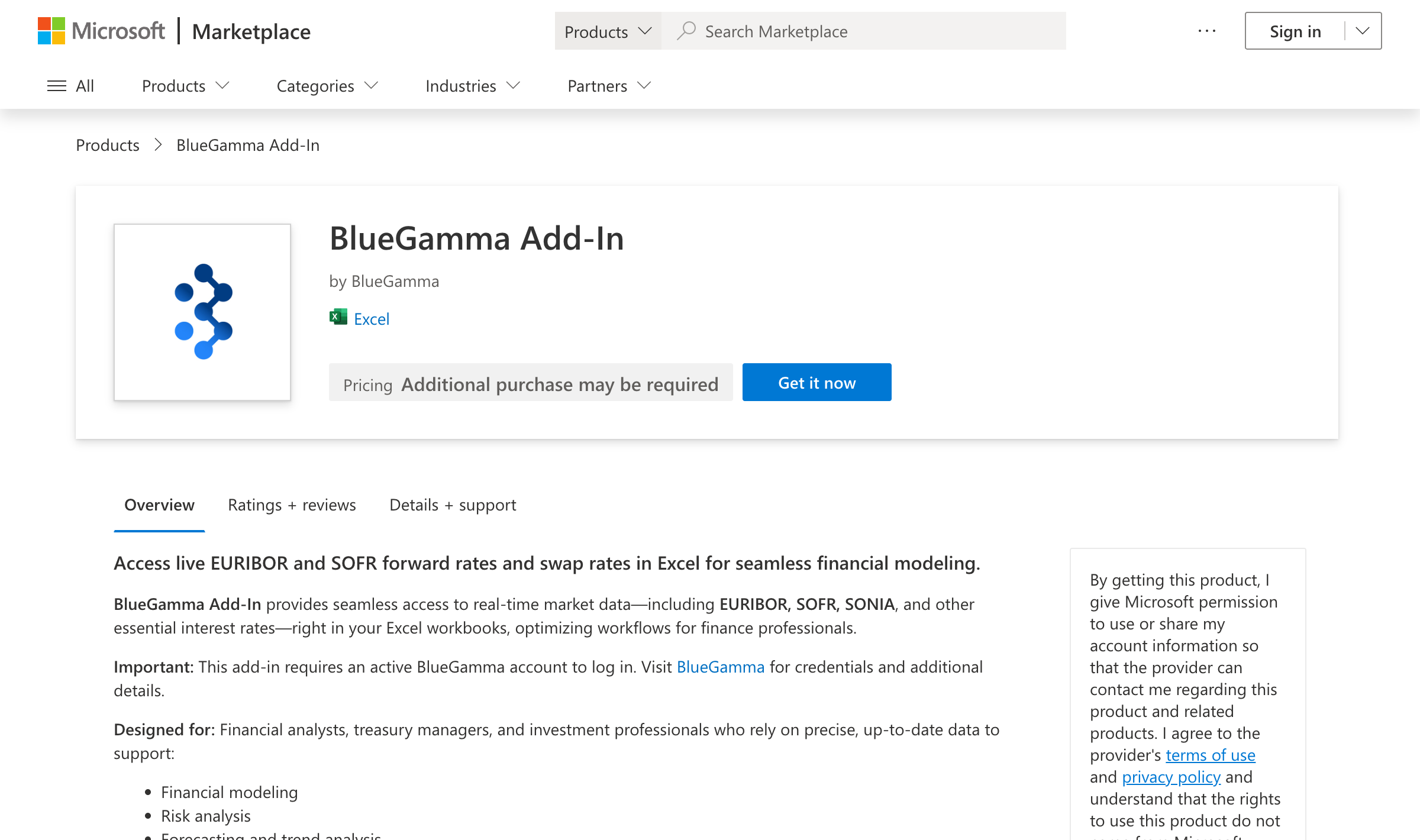
Visit the BlueGamma Excel Add-In on Microsoft AppSource.

2. Click "Get it now"

Sign in with your Microsoft account if prompted, then follow the on-screen instructions.

BlueGamma Add-In on Microsoft AppSource
Click "Get it now" to install the BlueGamma Add-In from Microsoft AppSource

3. Open Excel

The add-in will automatically appear in your Excel ribbon.


Option B: Install from within Excel

You can also install directly from Excel without leaving the app.

Excel Desktop (Windows/Mac)
  1. Open Excel and go to InsertGet Add-ins (or Office Add-ins)

  2. In the search bar, type BlueGamma

  3. Click Add next to the BlueGamma add-in

  4. Wait for the installation to complete

Excel for the Web
  1. Open a workbook at excel.office.com

  2. Click InsertOffice Add-ins

  3. Search for BlueGamma

  4. Click Add


Option C: Organizational Deployment

For IT administrators deploying to multiple users:

  1. Navigate to SettingsIntegrated apps

  2. Click Get apps and search for BlueGamma

  3. Deploy to specific users, groups, or the entire organization

  4. Users will see the add-in appear automatically in Excel

📘 Admin Guide: See Microsoft's documentation on deploying add-ins for detailed instructions.


Step 2: Verify Installation

Once installed, you should see the BlueGamma tab in your Excel ribbon:

BlueGamma tab in Excel ribbon
The BlueGamma tab appears in the Excel ribbon after successful installation

Don't see the tab? Try these steps:

  1. Close and reopen Excel

  2. Go to InsertGet Add-insMy Add-ins to verify BlueGamma is listed

  3. If using a work account, check with your IT team that add-ins are enabled

See our Troubleshooting guide for more help.


Step 3: Activate Your Account

Before you can use the add-in, your BlueGamma account needs to have Excel Add-In access enabled.

Contact us to activate your access:

We'll activate your account and confirm when you're ready to sign in — usually within an hour.

💡 Already have access? If your account is already activated, skip to Step 4.


Step 4: Sign In

1. Click the BlueGamma tab in the Excel ribbon

2. Click "Sign In" in the task pane that opens

3. Enter your BlueGamma credentials

  • Use the email address associated with your BlueGamma account

  • If you use SSO (Single Sign-On), click the SSO option

4. Verify you're connected

The task pane should show "Authenticated" or display your account name.

⚠️ Login button not working? Some corporate laptops block the pop-up login window. Click "Having issues logging in?" below the login button to use browser-based authentication instead. See Troubleshooting → Login button not working for detailed steps.


Step 5: Start Using the Add-In

Once signed in, try this formula to fetch a SOFR swap rate:

This returns the 10-year SOFR swap rate with semi-annual payments.

More Examples

What you want
Formula

Get a forward rate

=BlueGamma.FORWARD_RATE("SOFR", "2027-12-31", "2028-03-31")

Get a discount factor

=BlueGamma.DISCOUNT_FACTOR("SOFR", "2027-01-01")

Get a zero rate

=BlueGamma.ZERO_RATE("SOFR", "2026-06-30", "2025-01-01")

Get a swap rate by ID

=BlueGamma.SWAP_RATE_BY_ID("swap_abc123")

👉 See the full Functions Reference for all available formulas and parameters.


Need Help?

Resource
Link

Functions Reference

Email Support

In-App Chat

Available at app.bluegamma.io

Last updated

Was this helpful?